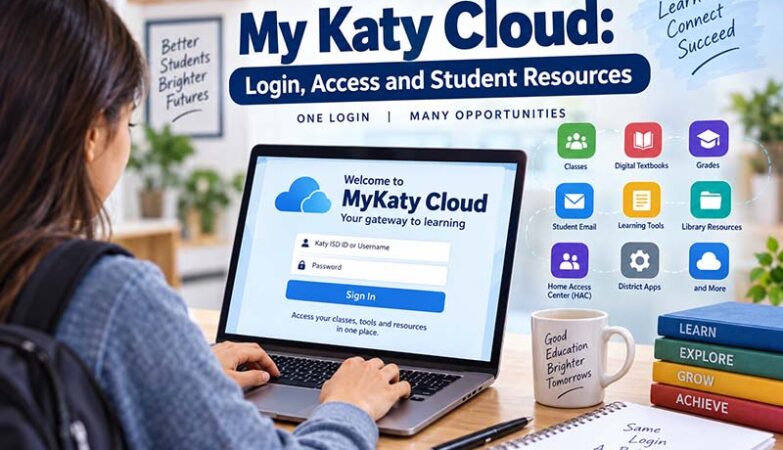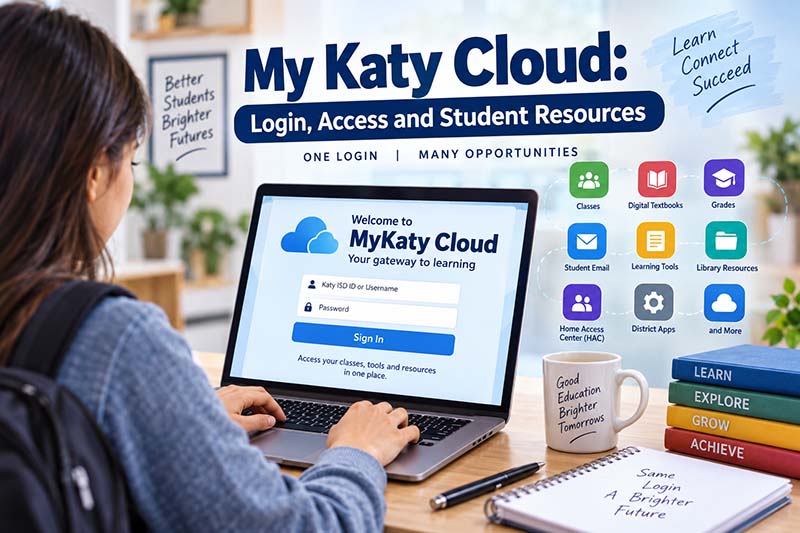
For students and families in Katy Independent School District, My Katy Cloud serves as a central online gateway to many of the digital tools used throughout the school experience. Instead of navigating separately to different educational services, users can sign in through one portal and reach district applications, learning resources, and other useful services. Understanding how the platform works can make everyday tasks from opening digital textbooks to checking school information much simpler.
What Is My Katy Cloud?
MyKaty Cloud, also referred to by Katy ISD as MyKaty or MKC, is a web portal designed to provide centralized access to district applications and educational resources. Katy ISD describes it as a single sign-on location for students, staff, and parents or guardians.
Single sign-on is particularly useful in a school environment because students may use several digital services during a normal day. Rather than finding every platform independently and repeatedly entering credentials, many supported applications can be reached after signing in to the central portal.
According to Katy ISD school resources, the portal can be accessed anywhere an internet connection is available and works with major operating systems, including Windows, iOS, and Android. The district also notes that many connected applications can authenticate users automatically after they have signed in.
That makes the portal more than a page containing school links. It acts as a practical starting point for navigating the district’s digital environment.
How to Log In to My Katy Cloud
The basic login process is straightforward. Students can open the district portal in a web browser and enter their Katy ISD ID number and password. Parents and guardians use the same ID and password credentials they use for Home Access Center.
For direct and current access, use the official Katy ISD MyKaty portal rather than relying on an unfamiliar third-party login page.
A typical login involves:
- Open the official MyKaty portal.
- Enter the appropriate Katy ISD username or ID.
- Enter the associated password.
- Complete any required security verification.
- Once signed in, select or search for the application you need.
Parents should use their own district-issued credentials rather than a student’s account when accessing services intended for parents or guardians.
The exact selection of applications can vary depending on whether the account belongs to a student, employee, or parent. Access may also depend on grade level and which services Katy ISD has assigned to the account.
Why Single Sign-On Makes School Resources Easier to Use
Schools now rely on numerous digital systems for instruction, communication, records, research, and classroom activities. Without a central access point, students can end up managing multiple URLs and login procedures.
My Katy Cloud reduces some of that complexity by placing supported resources behind one primary account. Katy ISD explains that, after users sign in, many applications can be opened without requiring another separate login.
This can be particularly helpful when students move between different resources during the school day or continue their work at home.
Centralized access also provides consistency. A student who learns where to find an assigned application at school can generally use the same portal when working from another internet-connected location.
Student Resources Available Through the Portal
The specific applications visible to a student can change according to grade, campus, courses, and district services. Therefore, it is better to check the account itself rather than assume every student will see an identical dashboard.
Katy ISD school pages identify educational services such as Discovery Education and EnVision among resources that students may access through the portal.
Library resources are another important part of the system. Katy ISD Library Services states that students have access to digital resources through the portal and can find databases and other materials in the A+ Library Resources folder. Available categories include online encyclopedias, databases, eBooks, audiobooks, and streaming video resources.
Students may therefore use the portal for much more than reaching a single classroom application. Depending on their account, it can serve as a gateway to research materials, textbooks, communication services, and instructional platforms.
Accessing Canvas
Canvas is one of the important learning platforms used within Katy ISD. The district describes Canvas as a learning management system where teachers can provide instructional materials, class calendars, assignments, events, and other resources.
Students can reach Canvas through MyKaty Cloud or access the district’s Canvas environment directly. Katy ISD also explains that parents can access Canvas using their Home Access Center credentials when using the parent-observer features available to them.
Using the portal can be convenient because it keeps Canvas alongside other school applications instead of requiring students to remember another starting point.
Student Email and Microsoft Resources
Katy ISD school technology guidance also directs students to use the portal to reach district email services. One district school resource instructs students using a web browser or Chromebook to sign in and search for Office 365 before opening the mail application.
For students who regularly move between email, classroom tools, and educational resources, having these services available from a common starting point can simplify the workflow.
Home Access Center for Parents and Guardians
Home Access Center, commonly called HAC, is an important service for families. Katy ISD describes HAC as an online grade book where parents and guardians can view student information that can help them follow their child’s educational progress.
Katy ISD currently directs parents and guardians to access HAC by signing in to MyKaty and selecting the Parent Home Access Center tile. The district’s HAC login information also states that access through MKC became required on January 15, 2025.
Parents use the same username and password for MyKaty that they use for HAC. This connection is worth knowing because users who previously bookmarked HAC directly may encounter a different authentication process than they remember.
The district also states that guardians who have never logged into MKC may be required to set up multi-factor authentication.
Passwords and Account Access
Password problems are among the most common obstacles with any school portal. The right solution depends on the type of account involved.
For parents and guardians, the username is the same as the HAC ID. Katy ISD provides password recovery guidance and a Password Self-Service system for users who need to recover account information or update a password.
Elementary student passwords are handled somewhat differently. According to the district’s parent and guardian FAQ, elementary students have default passwords that cannot be changed. Teachers and librarians can assist students while they are on campus, and parents can request additional technology assistance when necessary.
Staff members have separate support procedures. Katy ISD says employees can use Password Self-Service for password changes and security questions, while additional assistance is available through the district’s Technology Support Center.
Using official recovery options is preferable to repeatedly guessing credentials, which can create unnecessary account-access problems.
What to Do When an Application Does Not Open
Successfully signing into the main portal does not always mean every application will immediately work. Browser sessions, authentication settings, cached data, or individual application issues can sometimes interfere with access.
If a resource does not open correctly, start with simple checks. Confirm that the internet connection is working, make sure the correct district account is signed in, and try refreshing the page. Signing out completely and starting a fresh browser session may also resolve temporary authentication problems.
Katy ISD resources also reference WebPass as part of authentication for certain district applications. District parent resources advise users to enable WebPass where required so they can authenticate properly with connected services.
Students looking for technical instructions can search for the Knowledge Base from within the portal. Katy ISD’s parent resources specifically direct students to the Knowledge Base for help articles.
When those steps do not solve the issue, using district technology support is safer than following unofficial troubleshooting instructions that could be outdated.
Using the Portal Safely
A school account can provide access to educational information and district services, so basic account security matters.
Users should enter credentials only on legitimate Katy ISD services or approved applications reached through the district portal. Passwords should not be shared with friends or other unauthorized people.
Parents should likewise use their own credentials rather than asking children for student passwords. Katy ISD specifically advises parents accessing Canvas not to use their student’s login information.
If a login page looks unfamiliar, the safer approach is to return to the official district website or portal rather than entering credentials into a link received from an unknown source.
Multi-factor authentication adds another security layer for accounts where the district requires it. Users should keep their recovery information current so they can regain access if their password or authentication method causes a problem.
Getting More Value From the Student Portal
The portal is most useful when students treat it as their regular starting point for school technology rather than simply as a login page they visit occasionally.
Students can become familiar with the applications assigned to their account, identify where textbooks and research databases are located, and learn how to find support resources before an urgent assignment is due.
Older students may also encounter tools connected with college and career planning. For example, Katy ISD states that SchooLinks is available to students in grades 6–12 and their parents through the portal. The platform supports activities such as exploring colleges and careers, course planning, scholarship searches, and communicating with counselors.
Because district technology can change, users should rely on the applications and instructions currently presented by Katy ISD rather than assuming an older tutorial still reflects the present setup.
Frequently Asked Questions
Is MyKaty available outside school?
Yes. Katy ISD states that the portal is available anywhere users have internet access and supports major operating systems including Windows, iOS, and Android.
What username do parents use?
Parents and guardians use the same username or ID they use for Home Access Center. The same credentials are used to access the district’s MyKaty environment.
Can students access Canvas through the portal?
Yes. Katy ISD states that students can access Canvas through the district portal, while Canvas provides course calendars, assignments, events, and instructional resources.
What should I do if I forget my password?
Use the appropriate Katy ISD password recovery or Password Self-Service option for your account type. Parents can follow the district’s Parent/Guardian Password FAQs, while students or staff may have different recovery procedures.
Does every student have the same applications?
Not necessarily. Available resources can depend on the student’s grade, courses, campus, and district-provided services. The applications displayed after signing in are the best indication of what is currently available for that account.
Also Read: DGH A
Conclusion
My Katy Cloud gives Katy ISD students, families, and staff a centralized route to many of the digital services they use for school. Knowing how to sign in, find assigned applications, access HAC or Canvas, recover account credentials, and use official support resources can make the district’s online tools easier to navigate while helping users keep their accounts secure.