If your Preply Login isn’t working, it can be frustrating—especially when a lesson or message is waiting. Preply is widely used for language learning and tutoring, so access issues are usually minor and can be resolved. This guide walks you through clear, practical steps to diagnose and fix common sign-in problems quickly, whether you’re a student or tutor.
Common Reasons Your Preply Login Fails
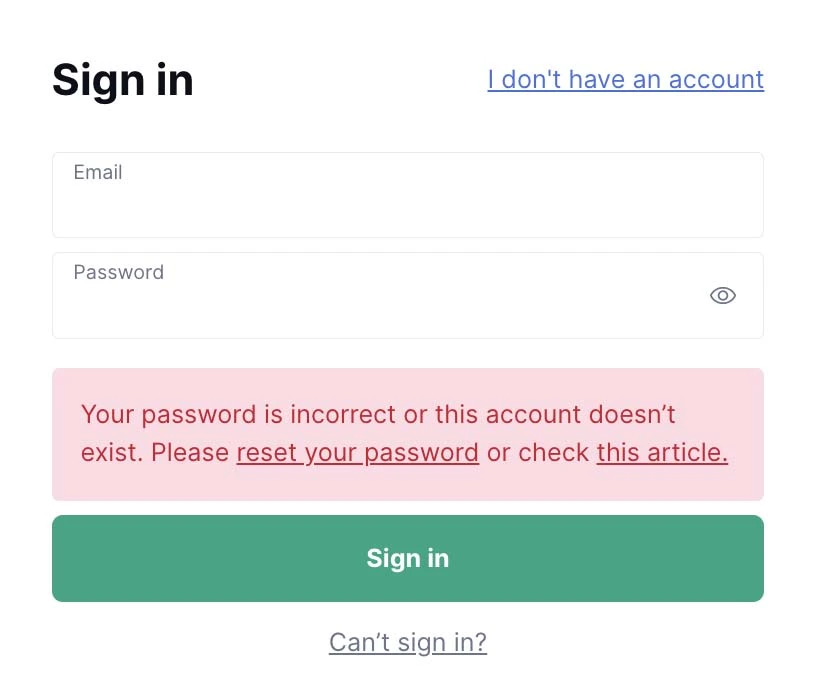
Before trying fixes, it helps to understand what typically causes access issues. Most problems fall into one of the categories below.
Incorrect Credentials
A mistyped email address, a wrong password, or an extra space can block access. Password managers may also auto-fill outdated details.
Quick checks:
- Re-enter your email manually.
- Toggle password visibility to confirm characters.
- Try pasting the password into a notes app to spot errors.
Account Lock or Security Flag
Multiple failed attempts can temporarily lock an account for safety. This is common after repeated retries.
What to do:
Wait 15–30 minutes, then try again or proceed to a password reset.
Browser or App Glitches
Outdated apps, cached data, or conflicting extensions can cause sign-in issues.
Common culprits include:
- Old app versions
- Corrupted cookies/cache
- Ad blockers or privacy extensions
Network or Device Issues
Public Wi-Fi, VPNs, or restrictive firewalls may prevent authentication requests from completing.
Preply Login Not Working: Step-by-Step Fixes

Work through these steps in order. Most users regain access within minutes.
1) Reset Your Password (Safely)
If credentials are the issue, a reset is the fastest solution.
- Use the “Forgot password” option.
- Check spam/junk folders for the reset email.
- Create a strong, unique password you don’t use elsewhere.
2) Update or Reinstall the App
On mobile, outdated versions cause unexpected errors.
- Update via the App Store or Google Play.
- If issues persist, uninstall and reinstall.
3) Clear Cache and Cookies (Desktop)
Clearing site data often resolves stuck sessions.
- Clear the site’s cache and cookies (not all browsing data).
- Close and reopen the browser before retrying.
4) Disable Extensions and VPNs
Temporarily turn off ad blockers, script blockers, and VPNs. Then attempt the Preply Login again. If it works, re-enable tools one by one to find the conflict.
5) Try Another Browser or Device
Switching browsers (Chrome, Firefox, Safari) or using another device helps isolate whether the problem is local.
6) Check Email Verification
Some accounts require email verification before full access. Search your inbox for a verification message and complete the step if pending.
Security Best Practices to Avoid Future Login Issues
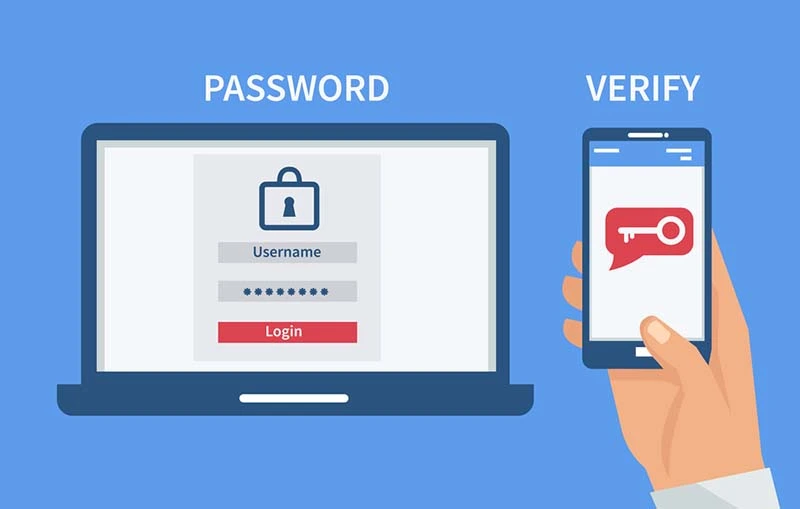
Consistent access goes hand in hand with good security habits. These steps reduce lockouts and protect your account.
- Use a password manager to avoid typos and reuse.
- Enable two-factor authentication if available.
- Avoid public Wi-Fi for sign-ins; if necessary, use a trusted network.
- Keep devices up to date to prevent compatibility issues.
For broader online account safety guidance, review recommendations from the U.S. Cybersecurity and Infrastructure Security Agency (CISA): https://www.cisa.gov
When to Contact Support
If you’ve tried all fixes and still can’t access your account, it’s time to reach out. Provide concise details to speed resolution:
- Email used on the account
- Device and browser/app version
- Time and error message shown
- Steps already attempted
Support can verify account status, lift security flags, or guide advanced troubleshooting if the Preply Login continues to fail.
FAQs
Why does my login work on mobile but not on desktop?
This often points to browser cache, cookies, or desktop extensions interfering with authentication.
How long do temporary locks last?
Short security locks usually clear within 30 minutes, but repeated attempts can extend the duration.
Can I use the same account on multiple devices?
Yes, but signing in simultaneously across many devices may occasionally trigger security checks.
Conclusion
Access problems are usually easy to fix with the right steps: update your app, reset your credentials, clear your browser data, and follow smart security habits. If issues persist, contact support promptly and get back to learning without delay. Try the fixes above now and restore access in minutes.
Also Read: How LeahRoseVIP Builds Loyal Online Fans